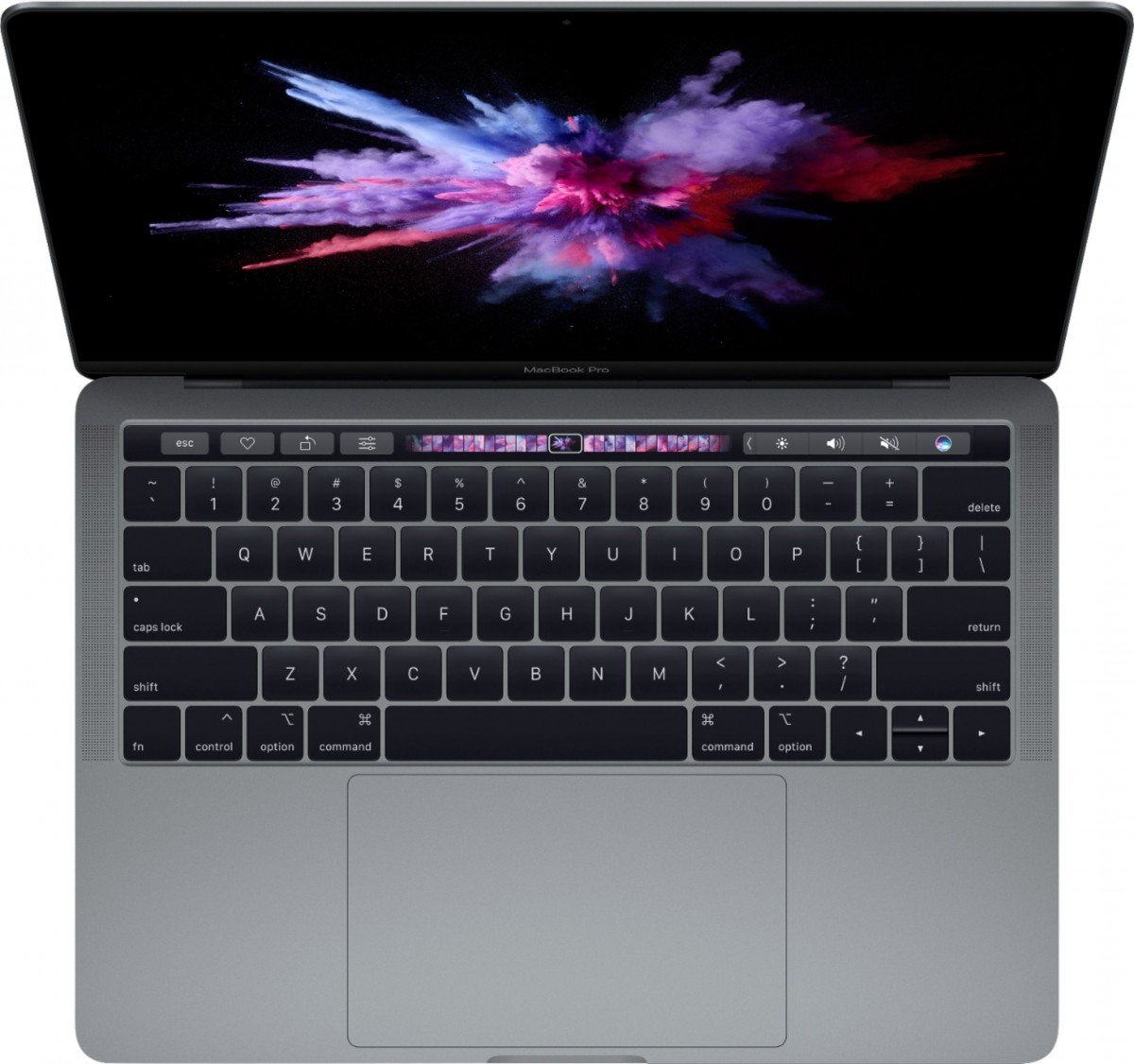
Ah, the MacBook Pro's Touch Bar. For years, it was a sleek, dynamic strip of digital magic replacing the traditional function keys, promising a more intuitive way to interact with your Mac. But when this vibrant display goes dark, freezes, or simply refuses to respond, it can feel like a crucial part of your MacBook has gone rogue. If you're grappling with a malfunctioning Touch Bar, chances are a software glitch is the culprit. Don't worry, you don't need to be a tech wizard to bring it back to life. This guide will walk you through a series of software fixes for MacBook Touch Bar problems, turning frustration into functionality with clear, actionable steps.
At a Glance: Your Quick Fix Cheat Sheet
Before we dive deep, here's a rapid-fire overview of the most effective software solutions for a misbehaving Touch Bar:
- Force Quit Apps: Silence resource-hungry or buggy applications.
- Restart Your Mac: The oldest trick in the book, often the most effective.
- Check Keyboard Settings: Ensure your Touch Bar is configured correctly.
- Update macOS: Stay current with the latest bug fixes and improvements.
- Clear Cache Files: Remove outdated or corrupted temporary data.
- Reset Touch Bar Server: Restart the process dedicated to your Touch Bar.
- Refresh Control Strip: Reinitialize the right-side Touch Bar controls.
- Reset SMC: A deep power management reset that can resolve hardware-level communication.
- Reset NVRAM/PRAM: Clear specific system settings that might be interfering.
Understanding Your Touch Bar's Quirks
Introduced in 2016 and discontinued in 2021, the MacBook Pro Touch Bar was an ambitious innovation. It dynamically adapted to the app you were using, offering shortcuts, settings, and even predictive text. While it aimed for futuristic flair, its reliance on software means it's susceptible to common digital hiccups.
Most Touch Bar problems aren't hardware failures. Instead, they often stem from:
- App Glitches: A single misbehaving application can hog resources or conflict with the Touch Bar's processes.
- Outdated macOS: Older software versions might contain bugs that newer updates have resolved, or lack compatibility with certain apps.
- Resource Overload: Too many demanding processes running simultaneously can cause the Touch Bar's dedicated server to freeze.
- Misconfigured Settings: Simple settings adjustments can sometimes hide or disable Touch Bar functionality.
Knowing this empowers you to tackle the issue methodically. Let's start with the simplest solutions, gradually moving to more comprehensive system resets.
The First Line of Defense: Quick & Easy Fixes
Sometimes, your Mac just needs a gentle nudge to get things back on track. These initial steps are low-effort and often surprisingly effective.
Force Quit Troublesome Applications
Just like a person getting overwhelmed, an application can sometimes stumble, consume too many resources, or simply freeze, taking your Touch Bar down with it. Identifying and quitting such an app is often the fastest solution.
How to do it:
- Open Activity Monitor: Press
Command + Spaceto open Spotlight Search, then type "Activity Monitor" and hit Enter. - Identify Suspects: Look for applications with unusually high CPU usage or any apps that seem frozen or unresponsive. If the Touch Bar stopped working after you opened a specific app, that's your primary suspect.
- Force Quit: Select the problematic app in the list and click the 'X' button in the toolbar (it looks like a stop sign). Confirm "Force Quit" when prompted.
- Alternative Method: If you can't access Activity Monitor, try the classic
Option + Command + Escshortcut. This brings up the "Force Quit Applications" window. Select the app and click "Force Quit."
After quitting, check if your Touch Bar has sprung back to life.
A Simple Restart Does Wonders
It might sound cliché, but restarting your Mac is the digital equivalent of a good night's sleep. It flushes out temporary memory, reloads all system processes from scratch, and can resolve countless minor software conflicts and glitches. Don't skip this step—it's often the quickest fix for a unresponsive Touch Bar.
How to do it:
- Click the Apple menu (top-left corner of your screen).
- Select Restart...
- Confirm by clicking Restart again in the pop-up window.
Give your Mac a minute or two to fully boot up, then check your Touch Bar.
Checking Your Mac's Settings
Sometimes the issue isn't a glitch, but simply a setting that's been changed, either intentionally or by accident. A quick check can ensure everything is configured as it should be.
Verify Keyboard and Touch Bar Settings
Your Mac offers granular control over how the Touch Bar behaves. It's worth ensuring that its core functionality hasn't been inadvertently disabled or altered.
How to do it (macOS Ventura and later):
- Go to System Settings (from the Apple menu or Dock).
- Click Keyboard in the sidebar.
- Scroll down to the Touch Bar Settings section.
- Ensure "Show Control Strip" is toggled On. This is crucial for the basic brightness, volume, and Siri controls to appear.
- Check "Touch Bar shows." For most users, "App Controls" is the desired setting, allowing the Touch Bar to adapt to the active application. Other options like "Expanded Control Strip" or "F1, F2, etc. Keys" might hide app-specific functions.
- Experiment with changing these settings and then reverting them, as sometimes the act of toggling can reset an internal state.
How to do it (macOS Monterey and earlier): - Go to System Preferences (from the Apple menu or Dock).
- Click Keyboard.
- Select the Keyboard tab.
- Near the bottom, you'll find options for "Touch Bar shows" and "Show Control Strip." Ensure they are set to your preference, typically "App Controls" and "Show Control Strip" checked.
Keep macOS Up-to-Date
Apple regularly releases macOS updates that include bug fixes, performance improvements, and security patches. An outdated operating system can harbor known bugs that affect components like the Touch Bar. Keeping your software current is one of the best preventative measures for any Mac issue.
How to do it (macOS Ventura and later):
- Click the Apple menu.
- Go to System Settings.
- Click General in the sidebar.
- Select Software Update.
- Your Mac will check for available updates. If one is found, click Update Now or Upgrade Now and follow the on-screen instructions.
How to do it (macOS Monterey and earlier): - Click the Apple menu.
- Go to System Preferences.
- Click Software Update.
- Install any available updates. Your Mac may need to restart during this process.
Ensuring your macOS is current helps avoid a myriad of issues, keeping your system humming along smoothly.
Deeper Dives: Resetting Core Components
If the quick fixes didn't do the trick, it's time to dig a little deeper into the specific processes and files that govern your Touch Bar. These steps involve resetting the software components directly responsible for its operation.
Clearing Out Old Cache Files
Cache files are temporary data generated by apps and the system to speed things up. Over time, these files can become corrupted or outdated, leading to unexpected behavior in various parts of your Mac, including the Touch Bar. Don't worry, clearing them is safe and won't delete any of your personal data. Your Mac will simply rebuild fresh caches as needed.
How to do it:
- Open Finder.
- From the top menu bar, click Go, then select Go to Folder... (or press
Shift + Command + G). - In the dialog box, type
~/Library/Caches/and press Enter. - You'll see a folder full of various cache directories. While there isn't a single "Touch Bar Cache" folder, you can safely look for folders with names related to system processes or applications you've had issues with.
- Selectively delete files/folders you suspect are related to a problem, or if you're feeling adventurous and want a comprehensive sweep, you can delete all the contents of this
Cachesfolder. (Though a full restart after this is highly recommended). - Empty your Trash after deleting the files.
- Restart your Mac to allow new cache files to generate.
Resetting the Touch Bar Server
The Touch Bar isn't just a display; it's managed by a dedicated background process on your Mac, often referred to as TouchBarServer. If this process gets stuck or crashes, your Touch Bar will stop responding. Forcing it to restart is like giving it a fresh start without needing to restart your entire computer.
Via Activity Monitor
This is the graphical way to find and reset the TouchBarServer.
How to do it:
- Open Activity Monitor (Applications > Utilities > Activity Monitor, or
Command + Spaceand search). - In the search box at the top right, type
TouchBarServer. - Select the
TouchBarServerprocess from the list. - Click the 'X' button in the toolbar to force quit the process.
- Confirm "Force Quit" in the pop-up window.
TheTouchBarServerwill automatically restart itself within a few seconds, and your Touch Bar should come back online.
Using Terminal Commands
For those comfortable with the command line, Terminal offers a quick and powerful way to reset the Touch Bar server.
How to do it:
- Open Terminal (Applications > Utilities > Terminal, or
Command + Spaceand search). - Type the command
sudo pkill TouchBarServer(note the capital 'T' and 'B'). - Press Return.
- You'll be prompted to enter your administrator password. Type it in (no characters will appear as you type, which is normal) and press Return.
The Touch Bar will go blank for a moment and then automatically restart. You won't get a confirmation message in Terminal, but your Touch Bar should reactivate.
Refreshing the Control Strip
The Control Strip is the persistent right-hand section of your Touch Bar, featuring buttons for brightness, volume, Siri, and sometimes others you've customized. If just this section is unresponsive while app-specific controls work, or vice-versa, resetting the Control Strip specifically can help.
How to do it:
- Open Terminal (Applications > Utilities > Terminal).
- Type the command
killall ControlStrip(note the capital 'C' and 'S'). - Press Return.
The Control Strip will disappear and then reappear, hopefully with full functionality restored. This command only restarts the Control Strip component, not the entireTouchBarServer.
System-Level Resets for Persistent Issues
If the previous steps haven't solved your Touch Bar woes, it's time to perform deeper system resets. These actions can resolve issues related to power management and system configuration that might indirectly affect the Touch Bar. These are safe but a bit more involved. For more general advice, you might find broader insights into Troubleshooting your Touch Bar glitches.
Resetting the SMC (System Management Controller)
The SMC is responsible for low-level functions on your Mac, including power management, battery charging, fan control, and aspects of the keyboard and Touch Bar backlighting. A corrupted SMC can lead to a host of seemingly unrelated problems, including an unresponsive Touch Bar. The steps for resetting the SMC vary slightly depending on your Mac model. For MacBook Pros with the Touch Bar, it's typically a T2 Security Chip Mac or Intel-based Mac with a non-removable battery.
How to do it (MacBook Pro with T2 Security Chip or non-removable battery - Most Touch Bar models):
- Shut down your MacBook completely.
- Once shut down, plug in the power adapter.
- On the built-in keyboard, press and hold these three keys for at least 10 seconds:
Shift(left side of the keyboard)Control(left side of the keyboard)Option(left side of the keyboard)- Simultaneously, press the Power button (which is also the Touch ID button on Touch Bar models).
- Release all four keys at the same time.
- Press the Power button again to turn on your MacBook.
You might notice the power adapter light briefly changing color during the hold, indicating a successful SMC reset.
Zapping the NVRAM / PRAM
NVRAM (Non-Volatile Random-Access Memory) and its predecessor, PRAM, store specific system settings like display resolution, startup disk selection, recent kernel panic information, and sometimes Touch Bar behavior. Resetting it clears these settings and forces your Mac to reload them, which can fix issues caused by corrupted preferences.
How to do it:
- Shut down your MacBook completely.
- Press the Power button to turn on your Mac.
- Immediately after pressing the power button, press and hold these four keys simultaneously:
Option + Command + P + R. - Keep holding these keys for approximately 20 seconds. During this time, your Mac might appear to restart, or you might hear the startup chime a second time (on older models). On newer Macs, the Apple logo might appear and disappear a second time.
- After about 20 seconds, release the keys.
Your Mac will continue to start up normally. You might need to readjust some system settings like sound volume or display resolution afterward.
What if It's Still Not Working?
If you've meticulously worked through all the software fixes listed above and your Touch Bar remains unresponsive, the problem might unfortunately lie beyond software.
- Hardware Malfunction: While less common, the Touch Bar itself, or its connector to the logic board, could have developed a hardware fault. This might require professional inspection.
- Third-Party App Conflicts: Though addressed by force quitting, some stubborn third-party utilities or drivers might be causing deeper conflicts. Try booting into Safe Mode (hold Shift during startup) to see if the Touch Bar works there. If it does, a third-party app is almost certainly the culprit.
- Reinstall macOS: As a last resort, a clean installation of macOS can eliminate any deep-seated software corruption. Be sure to back up your data beforehand!
In cases of suspected hardware issues or when all software troubleshooting fails, contacting Apple Support or visiting an authorized service provider is your best next step. They have diagnostic tools that can pinpoint hardware failures.
Preventive Measures & Best Practices
To keep your Touch Bar (and the rest of your Mac) running smoothly, adopt these habits:
- Regular Updates: Make it a habit to install macOS updates promptly.
- Mindful App Usage: Be aware of which applications consume significant resources. Close apps you're not actively using.
- Periodic Restarts: A full restart every few days can prevent minor glitches from accumulating.
- Clean Up: Occasionally clearing cache files and running maintenance scripts can keep your system lean.
- Avoid Overheating: Extreme temperatures can sometimes stress components and lead to erratic behavior.
Final Thoughts: Reclaiming Your Interactive Experience
A non-functioning Touch Bar can be a real inconvenience, especially for those who relied on its dynamic capabilities. By methodically applying these software fixes, you're not just troubleshooting; you're gaining a deeper understanding of your MacBook's inner workings. Most Touch Bar problems are indeed software-based, and with a little patience, you can often resolve them yourself. So take a deep breath, follow these steps, and get ready to enjoy a fully functional, interactive Touch Bar once again.