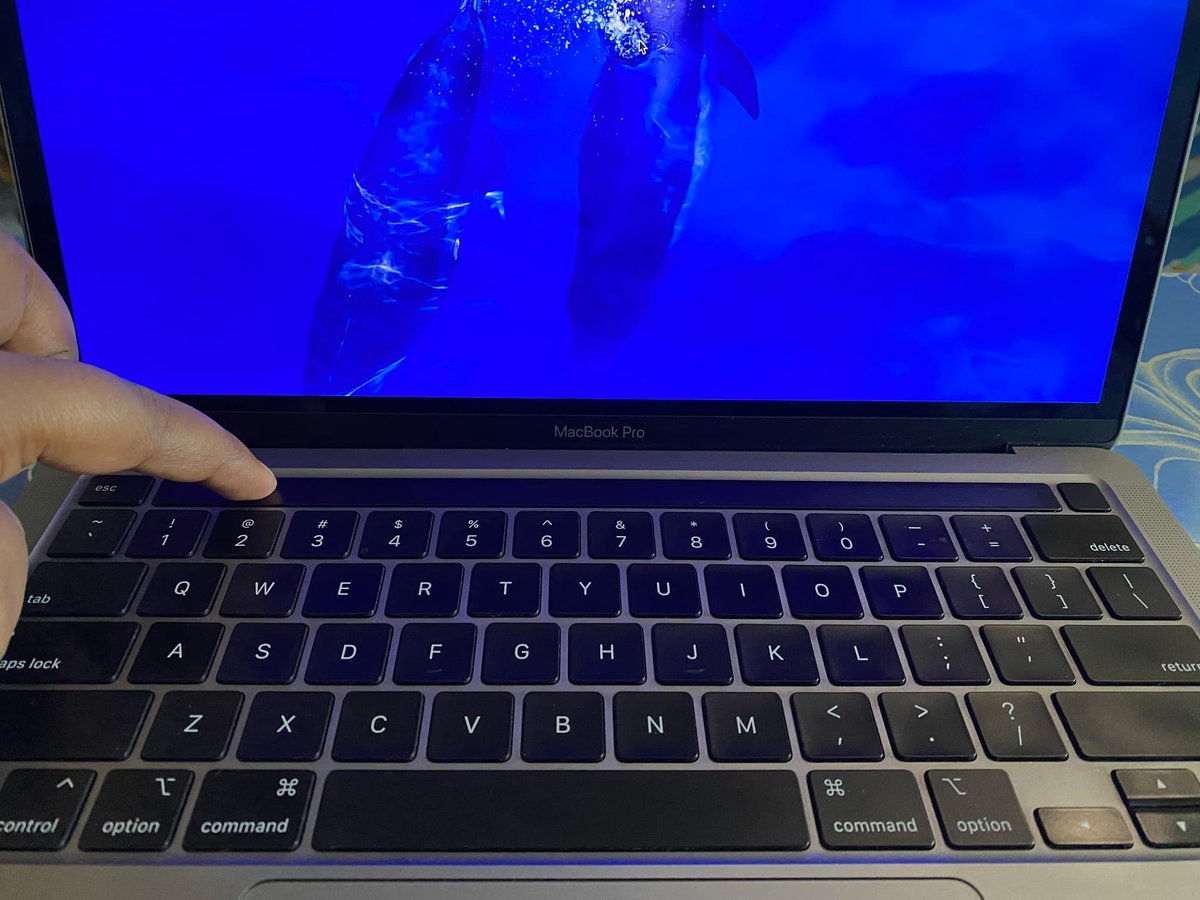
Your MacBook Pro's Touch Bar, that sleek, dynamic strip of contextual controls, is usually a powerful ally for productivity. But when it starts to act up—freezing, flickering, or simply going dark—it can feel like a vital part of your workflow has vanished. Diagnosing Common Touch Bar Glitches isn't just about fixing a minor inconvenience; it's about restoring your Mac's full potential and getting back to seamless operation.
As a seasoned tech journalist, I've guided countless users through perplexing hardware and software issues. Here, we’ll cut through the confusion and arm you with the precise steps to identify and resolve those frustrating Touch Bar problems, moving from the simplest fixes to more intricate solutions.
At a Glance: Key Takeaways for Touch Bar Glitches
- Software First: Most Touch Bar issues are software-related, solvable with restarts, updates, or process resets.
- System Resets are Your Friends: NVRAM/PRAM and SMC resets can clear deep-seated configuration issues.
- Isolate the Problem: Use Safe Mode or a new user account to determine if the glitch is app-specific or user-profile related.
- Cleanliness Matters: Dust and debris can sometimes interfere with functionality.
- Hardware Is the Last Resort: If software troubleshooting fails, a hardware issue is likely, warranting professional attention.
Understanding Your Touch Bar: More Than Just Buttons
Before we dive into fixes, let's quickly clarify what we're dealing with. The Touch Bar isn't just a row of static buttons; it's a multi-touch OLED display strip that fluidly changes based on what you're doing. Editing a photo? It shows editing tools. Browsing the web? You get navigation controls. It’s designed to enhance your experience by putting relevant functions at your fingertips. This dynamic nature means its functionality relies heavily on seamless communication between hardware, macOS, and individual applications—which also means more points where things can, unfortunately, go wrong.
The Usual Suspects: Common Touch Bar Glitches You Might Encounter
When your Touch Bar misbehaves, it typically falls into one of a few common categories:
- Freezing or Unresponsiveness: You tap, swipe, or press, but nothing happens. The controls are displayed, but they're stuck.
- Erratic Behavior: The Touch Bar displays incorrect icons, controls that don't match the active application, or randomly changes its layout. It might even show blank spaces where icons should be.
- Black or Flickering Screen: The entire Touch Bar goes dark, or it rapidly flickers on and off, making it unusable.
- Missing Controls or Icons: Essential buttons, like brightness, volume, or application-specific tools, simply aren't appearing.
- Inconsistent Brightness or Display Quality: The Touch Bar might appear dim, have uneven backlighting, or show visual artifacts.
Experiencing any of these can throw a wrench in your workflow, but rest assured, many are fixable with the right approach.
Why Your Touch Bar Might Be Acting Up: Unpacking the Causes
Understanding the root cause can often guide your troubleshooting. Touch Bar glitches typically stem from a few key areas:
Software Snags: The Most Common Offenders
- Bugs in macOS or Applications: Software isn't perfect. A bug in the operating system or a specific application can cause the Touch Bar to malfunction.
- Outdated macOS: Running an old version of macOS might mean you're missing critical bug fixes or compatibility updates for your Touch Bar.
- Corrupted System Files: Essential files that macOS relies on can become damaged, leading to erratic behavior.
- Conflicts with Third-Party Applications: Some apps, especially those that deeply integrate with macOS or modify system processes, can clash with the Touch Bar agent.
- Memory Overload or Cache Errors: If your Mac is struggling with too many open applications or has a build-up of corrupted cache files, it can impact Touch Bar performance.
Hardware Headaches: When the Problem Runs Deeper
- Faulty Touch Bar Components: The OLED display itself, its controller, or the haptic feedback engine could be defective.
- Logic Board Issues: The Touch Bar connects to the main logic board. Problems with the board, particularly the area managing the Touch Bar, can cause malfunctions.
- Ribbon Cables or Connectors: The Touch Bar connects via delicate ribbon cables. If these are loose, damaged, or corroded, the connection can fail.
- Damaged Display Cable: While less common for Touch Bar only issues, a general display cable problem could indirectly affect the Touch Bar, as it's part of the display assembly on some models.
Environmental Factors: The External Influencers
- Overheating: Prolonged exposure to high temperatures can stress internal components, leading to temporary or permanent malfunctions.
- Power Problems: Inconsistent power delivery or battery issues (though rare for specific Touch Bar glitches) could, in theory, impact its performance.
- Dust, Debris, or Liquid Damage: Accumulation of foreign material around the Touch Bar or, worse, liquid spills, can interfere with its sensitive electronics.
Now that we know what we're up against, let's roll up our sleeves and start fixing things.
Your Step-by-Step Troubleshooting Playbook
It’s always best to start with the simplest, least intrusive solutions and work your way up. After each step, test your Touch Bar to see if the issue is resolved.
1. Start Simple: Restart Your MacBook Pro
This is the golden rule of troubleshooting for a reason. A full system restart can clear temporary software glitches, refresh memory, and reset any hung processes that might be affecting your Touch Bar.
- How to do it: Click the Apple menu in the top-left corner of your screen and select "Restart..." Confirm the action.
2. Give the Touch Bar a Nudge: Force Restarting the Touch Bar Process
Sometimes, only the Touch Bar's dedicated process (known as "Touch Bar agent" or "ControlStrip") gets stuck. You can restart just this component without rebooting your entire Mac.
- Using Activity Monitor:
- Open Activity Monitor (you can find it in
Applications/Utilitiesor by searching in Spotlight withCommand + Space). - In the search bar at the top right of Activity Monitor, type "Touch Bar agent".
- Select the "Touch Bar agent" process.
- Click the 'X' button in the toolbar (it looks like a stop sign) and choose "Quit" or "Force Quit." The Touch Bar should momentarily go blank and then automatically restart itself.
- Using Terminal (for advanced users):
- Open Terminal (also in
Applications/Utilitiesor via Spotlight). - Type the following commands, pressing
Enterafter each:
bash
sudo pkill TouchBarServer
sudo killall ControlStrip - You may be prompted for your administrator password. Enter it and press
Enter. - After running these commands, consider logging out of your user account (
Apple menu > Log Out [Your Name]) and then logging back in.
3. Stay Current: Update macOS
An outdated operating system is a common culprit for a myriad of issues, including Touch Bar glitches. Apple frequently releases macOS updates that include bug fixes, performance improvements, and compatibility enhancements.
- How to do it:
- Go to System Settings (or System Preferences on older macOS versions).
- Click on General (or Software Update directly).
- Select Software Update.
- If an update is available, click "Update Now" and follow the on-screen instructions. Ensure your MacBook Pro is plugged into power during the update process.
4. Pinpointing the Culprit: Quitting Problematic Applications
If your Touch Bar only acts up when a specific application is open, that app might be the source of the conflict.
- How to do it:
- When the Touch Bar is glitching, try quitting the most recently opened application or any app that heavily uses the Touch Bar.
- Relaunch the application to see if the problem returns. If it does, consider checking for updates for that specific app or reinstalling it.
5. Deep Reset: Reset NVRAM/PRAM
NVRAM (non-volatile random-access memory) and PRAM (Parameter RAM) store certain system settings like display resolution, startup disk selection, and, importantly, some system-level controls, which can sometimes impact the Touch Bar. Resetting them can clear corrupted settings.
- How to do it:
- Shut down your MacBook Pro completely.
- Turn on your Mac and immediately press and hold these four keys together:
Option + Command + P + R. - Keep holding the keys until you hear the startup sound a second time (or, on Macs with the T2 Security Chip, until the Apple logo appears and disappears a second time).
- Release the keys. Your Mac will continue to start up normally.
6. Power Management Reboot: Resetting SMC (System Management Controller)
The SMC manages various hardware functions, including power management, battery charging, fan behavior, and keyboard/Touch Bar backlight functions. A reset can resolve power-related or low-level hardware communication issues.
- How to do it (for most modern MacBooks without a T2 chip):
- Shut down your MacBook Pro.
- On the built-in keyboard, press and hold these three keys on the left side:
Control + Option + Shift. - While holding these three keys, press and hold the Power button as well. Keep all four keys held down for about 10 seconds.
- Release all keys simultaneously.
- Press the Power button again to turn on your Mac.
- For MacBooks with a T2 Security Chip (most 2018 or later models):
- Shut down your Mac.
- Press and hold the Power button for 10 seconds.
- Release the Power button, wait a few seconds, then press it again to turn on your Mac.
- Important: Always refer to Apple's official support documentation for SMC reset procedures specific to your exact MacBook Pro model, as they can vary.
7. The Physical Check: Cleaning Your Touch Bar
Sometimes, the simplest solutions are the most overlooked. Dust, dirt, or even smudges on the Touch Bar's surface can occasionally interfere with its touch sensitivity or display.
- How to do it:
- Shut down your MacBook Pro.
- Use a soft, lint-free cloth (like a microfiber cleaning cloth) slightly dampened with water (or a screen cleaner designed for electronics).
- Gently wipe the entire Touch Bar surface and the surrounding keyboard area. Avoid excessive moisture.
8. Testing the Waters: Start in Safe Mode
Safe Mode starts your Mac with a minimal set of system extensions, prevents third-party login items from loading, and performs a basic disk check. This is excellent for determining if a third-party application or a corrupted system extension is causing the Touch Bar issue.
- How to do it (for Apple silicon Macs - M1, M2, etc.):
- Shut down your Mac.
- Press and hold the Power button until you see "Loading startup options."
- Select your startup disk, then press and hold the
Shiftkey and click "Continue in Safe Mode." - Release the
Shiftkey.
- How to do it (for Intel-based Macs):
- Restart your Mac.
- Immediately press and hold the
Shiftkey after your Mac starts up. - Release the
Shiftkey when you see the login window. You should see "Safe Boot" in the top right corner of the screen.
- Test: Once in Safe Mode, check if the Touch Bar works correctly. If it does, a third-party application or a conflicting login item is likely the cause. Restart your Mac normally, and then systematically disable or uninstall recently added apps or login items.
9. Calling in the Diagnostics: Perform Hardware Diagnostic Test
Apple provides a built-in hardware diagnostic tool that can check for problems with various internal components, including the Touch Bar assembly.
- How to do it (for Apple silicon Macs - M1, M2, etc.):
- Shut down your Mac.
- Press and hold the Power button until you see "Loading startup options."
- Press
Command + D.
- How to do it (for Intel-based Macs):
- Shut down your Mac.
- Turn on your Mac and immediately press and hold the
Dkey. - Keep holding the
Dkey until you see the Apple Diagnostics screen.
- Results: The diagnostic test will run. If it finds any issues, it will display a reference code and potentially offer solutions. Make a note of any codes for Apple Support if needed.
10. User-Specific? Creating a New User Account
Sometimes, problems are tied to a corrupted user profile or specific settings within your main account. Creating a new, clean user account can help determine if the Touch Bar glitch is system-wide or isolated to your user profile.
- How to do it:
- Go to System Settings (or System Preferences).
- Click on Users & Groups.
- Click the
+button to add a new user. You may need to authenticate with your administrator password. - Create a new "Standard" or "Administrator" user.
- Log out of your current account and log in to the new user account.
- Test the Touch Bar. If it works perfectly in the new account, the problem likely lies within your original user profile (e.g., specific login items, preferences, or corrupted files).
For a deeper dive into overall Touch Bar troubleshooting, you might find more general strategies useful by checking out how to Troubleshoot Touch Bar Glitching comprehensively.
Proactive Maintenance: Keeping Glitches at Bay
An ounce of prevention is worth a pound of cure. While you can't prevent every potential issue, adopting these practices can significantly reduce the likelihood of future Touch Bar problems:
- Regularly Update macOS and Third-Party Software: This is the easiest way to ensure you have the latest bug fixes and compatibility improvements.
- Avoid Extreme Heat or Obstructed Ventilation: Overheating is detrimental to all electronic components. Use your MacBook Pro on hard, flat surfaces and keep its vents clear.
- Use Genuine Apple Accessories: Third-party chargers or peripherals, while sometimes cheaper, can occasionally introduce power inconsistencies or other issues.
- Periodically Clean Your Device: A quick wipe-down of your MacBook Pro, including the Touch Bar, can prevent dust and debris buildup.
- Regularly Back Up Your Data: While not directly preventing Touch Bar glitches, having current backups ensures that if a severe issue requires a full system reinstallation or hardware repair, your important files are safe.
When It's Time to Call in the Pros
You've tried everything, from simple restarts to deep system resets and hardware diagnostics. Your Touch Bar is still unresponsive, flickering, or simply dead. This is the point where the problem likely transcends software and points to a hardware failure.
Here's when to definitely contact Apple Support or visit an Apple Authorized Service Provider:
- Persistent Glitches: If, after diligently going through all the troubleshooting steps, the Touch Bar issues remain unresolved.
- No Lights, No Life: The Touch Bar consistently doesn't light up at all, even after restarts and SMC/NVRAM resets.
- Physical Damage: If the Touch Bar flickers specifically when you apply light pressure to it, or if there are visible cracks or damage to the display, it's a clear hardware indicator.
- Diagnostic Codes: If the Apple Hardware Diagnostic test returned any error codes, this is critical information for technicians.
- Not Detected: If the Touch Bar doesn't seem to be detected by the system at all (e.g., no "Touch Bar agent" process in Activity Monitor, or diagnostic failures).
Remember, especially if your device is under warranty or AppleCare coverage, professional diagnosis and repair are your best next steps. Attempting complex repairs yourself without the right tools and expertise can void warranties or cause further damage.
Your Touch Bar, Restored
Dealing with a glitchy Touch Bar can be frustrating, pulling you out of your productive flow. But by systematically working through these troubleshooting steps, you've empowered yourself to address the most common causes, from software hiccups to deeper system resets. In many cases, a bit of methodical patience is all it takes to get that dynamic display strip working flawlessly again, restoring your MacBook Pro's full, intuitive functionality.